Spotlight Effects
A SpotlightEffect decorates the cutout punched by HighlightStyle.Spotlight, letting you replace the classic hard-edge look with a glow, a soft gradient fade, or fully custom draw code.
Effects apply only to HighlightStyle.Spotlight. Every other highlight style (Pulse, Border, Ripple, Custom, None) ignores the property.
Core API
Attach an effect when constructing the spotlight:
step(Targets.SearchBar) {
    title = "Search everything"
    highlightStyle = HighlightStyle.Spotlight(
        effect = SpotlightEffect.Glow(
            color = Color.Cyan,
            radius = 32.dp,
            alpha = 0.7f,
        ),
    )
}
SpotlightEffect is a sealed interface with four variants:
| Variant | Purpose |
|---|---|
None | Hard-edge cutout, classic product-tour look (default). |
Glow | Colored halo radiating outward from the cutout edge. |
SoftEdge | Shape-aware gradient fade between cutout and scrim. |
Custom | Arbitrary draw code invoked once per cutout. |
None
The default. No decoration is applied, leaving the sharp transition between the transparent cutout and the scrim.
Use when you want a crisp, minimal look or when you're combining spotlight with a heavy tooltip that already draws enough attention.
Glow
Draws a radial halo on top of the scrim after cutouts are punched. The halo peaks at the cutout edge and fades to transparent at the specified radius.
highlightStyle = HighlightStyle.Spotlight(
    overlayColor = Color.Black,
    overlayAlpha = 0.7f,
    effect = SpotlightEffect.Glow(
        color = Color(0xFF4FC3F7),
        radius = 40.dp,
        alpha = 0.6f,
    ),
)
Parameters
| Parameter | Default | Description |
|---|---|---|
color | Color.White | Halo color. |
radius | 24.dp | How far the halo extends beyond the cutout edge. |
alpha | 0.6f | Peak alpha at the cutout edge, fades to 0 at radius. |
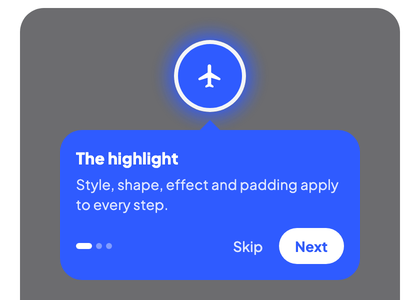
Visually, the cutout stays hard-edged but gains a colored aura that makes the target pop against the dimmed scrim. The halo follows the cutout's shape, whether that is a circle, a pill or a wide rounded rectangle, and it is never drawn inside the cutout, so the target itself keeps its own colors.
Tip
Use Glow with a brand color to theme the tour without changing tooltip styling. Keep alpha in the 0.3-0.7 range, higher values look muddy against dark scrims.
SoftEdge
Replaces the hard cutout with a shape-aware gradient fade. Pixels next to the cutout are fully transparent, pixels at the outer edge of the fade band keep the full scrim, and pixels in between fade progressively.
highlightStyle = HighlightStyle.Spotlight(
    shape = SpotlightShape.RoundedRect(cornerRadius = 12.dp),
    effect = SpotlightEffect.SoftEdge(fadeWidth = 24.dp),
)
Parameters
| Parameter | Default | Description |
|---|---|---|
fadeWidth | 16.dp | Width of the gradient transition band radiating outward from the cutout edge. |
Shape awareness
Unlike a naive radial clear, SoftEdge traces the cutout shape. A Pill cutout gets a pill-shaped fade, a RoundedRect cutout gets a matching rounded-rect fade, and the corner radius expands as the fade extends outward.
Note
SoftEdge increases the overdraw budget because it iterates 24 expanded shape draws with BlendMode.DstOut. On low-end devices, prefer narrow fade widths.
Custom
Receives the DrawScope and the padded target bounds. Runs once per cutout, including additional targets declared on the step. Do whatever you want.
highlightStyle = HighlightStyle.Spotlight(
    effect = SpotlightEffect.Custom { bounds ->
        // Dashed ring that follows the cutout.
        drawCircle(
            color = Color.Yellow,
            radius = maxOf(bounds.width, bounds.height) / 2f + 8.dp.toPx(),
            center = bounds.center,
            style = Stroke(
                width = 3.dp.toPx(),
                pathEffect = PathEffect.dashPathEffect(floatArrayOf(10f, 6f)),
            ),
        )
    },
)
The lambda runs after cutouts are punched, so anything you draw appears on top of the scrim.
Warning
Custom effects are invoked inside a composition with CompositingStrategy.Offscreen. Using BlendMode.Clear here will punch additional holes in the scrim, which may be what you want, but can also interact unexpectedly with SoftEdge if you combine them.
Outline without dimming
Effects still draw when the scrim is fully transparent. Combined with overlayAlpha = 0f a Custom effect gives a spotlight that blocks touches outside the target and outlines it, without dimming the screen:
highlightStyle = HighlightStyle.Spotlight(
    overlayAlpha = 0f,
    effect = SpotlightEffect.Custom { bounds ->
        drawRoundRect(
            color = Color(0xFF7C4DFF),
            topLeft = bounds.topLeft,
            size = bounds.size,
            cornerRadius = CornerRadius(8.dp.toPx()),
            style = Stroke(width = 2.dp.toPx()),
        )
    },
)
Multi-element highlights
When a step declares additionalTargets, each cutout is decorated independently. A Glow effect applies to every cutout, a SoftEdge fade hugs every cutout shape, and a Custom effect's lambda fires once per cutout with that cutout's bounds.
step(Targets.Primary) {
    additionalTargets = listOf(Targets.SecondaryA, Targets.SecondaryB)
    highlightStyle = HighlightStyle.Spotlight(
        effect = SpotlightEffect.Glow(color = Color.Magenta),
    )
}
Full example
enum class OnboardingTargets { Search, Filter, Profile }

val state = rememberWaypointState {
    step(OnboardingTargets.Search) {
        title = "Search"
        description = "Find anything fast"
        highlightStyle = HighlightStyle.Spotlight(
            shape = SpotlightShape.Pill,
            effect = SpotlightEffect.SoftEdge(fadeWidth = 20.dp),
        )
    }
    step(OnboardingTargets.Filter) {
        title = "Filter results"
        highlightStyle = HighlightStyle.Spotlight(
            effect = SpotlightEffect.Glow(
                color = Color(0xFF7C4DFF),
                radius = 28.dp,
            ),
        )
    }
    step(OnboardingTargets.Profile) {
        title = "Your profile"
        highlightStyle = HighlightStyle.Spotlight(
            effect = SpotlightEffect.Custom { bounds ->
                drawRoundRect(
                    color = Color.White,
                    topLeft = bounds.topLeft - Offset(4.dp.toPx(), 4.dp.toPx()),
                    size = Size(bounds.width + 8.dp.toPx(), bounds.height + 8.dp.toPx()),
                    cornerRadius = CornerRadius(bounds.height),
                    style = Stroke(width = 2.dp.toPx()),
                )
            },
        )
    }
}
See also
- Highlight Styles, the full highlight API surface.
- Custom Tooltips, pair a themed spotlight with a matching tooltip.